Guides
How to help Instagram links open in the YouTube app
By Naved Naik · Published · Last updated
Read as MarkdownQuick answer
A YouTube link tapped inside Instagram can stay in Instagram’s browser instead of opening the YouTube app. A supported app link can attempt the handoff, but the result depends on the phone, browser, installed app and user settings. In Dojvo, use a Link block with Open in the YouTube app enabled, keep the web fallback, and test on actual phones.
You share a video, someone taps it, and YouTube asks them to sign in even though they already use the app. Often, the video has opened in a different browser context. There is no single URL trick that guarantees the same result on every iPhone, Android phone and Instagram version.
Why does the video stay inside Instagram?
Social apps can show websites in an in-app browser. That browser may have a different sign-in state from YouTube’s own app or the visitor’s usual browser. So ‘I am already signed in on my phone’ does not necessarily mean this particular view is signed in.
The app that opens the link, the operating system and the destination app all influence the handoff. A page can offer an app-opening route, but it cannot make every browser honour it. Treat app opening as a helpful path with a usable fallback, rather than a promise that everyone will bypass a login screen.
What can an app-opening link actually do?
On Android, Chrome documents intent links that can launch an installed app and include a browser fallback. It also documents cases where an app will not launch, including an unresolved intent and a missing user gesture. That describes Chrome’s behaviour; it is not a guarantee about Instagram’s in-app browser.
On Apple devices, universal links connect supported website URLs with an installed app. Apple’s troubleshooting guidance explains that association and the browser fallback when the app is absent. A third-party bio page does not control YouTube’s app association, the visitor’s settings or every in-app-browser restriction.
| Situation | A sensible expectation |
|---|---|
| YouTube installed; app handoff allowed | The link may open the video in the app |
| YouTube not installed | The web destination should remain usable |
| In-app browser blocks the handoff | The video may stay on the web; visitor can try the browser’s available open options |
| Desktop visitor | A normal YouTube web destination is appropriate |
How do you set this up in Dojvo?
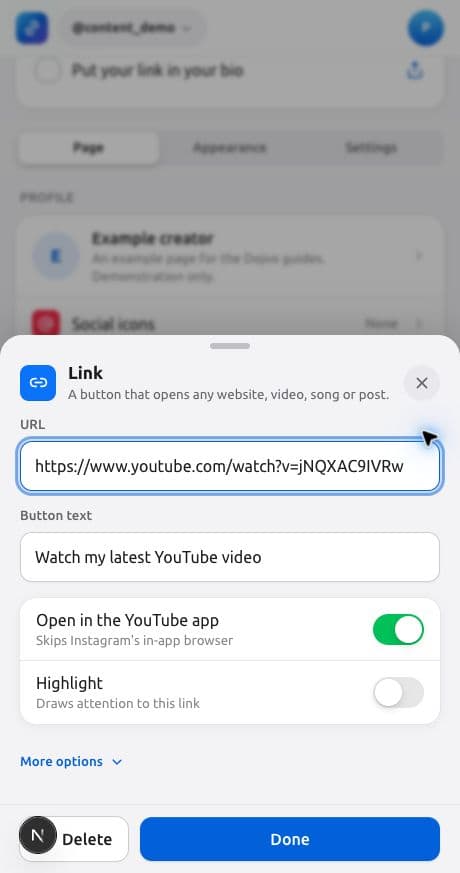
Use a Link block when the goal is sending someone to the video in YouTube. Dojvo also has a separate YouTube block for an embedded video; that serves a different purpose. Start with the normal YouTube watch or share URL rather than constructing a custom app scheme yourself.
- Open the page’s Editor and add a Link block.
- Give it a descriptive title, such as ‘Watch the full meal-prep video’.
- Paste the video’s YouTube URL.
- Keep Open in the YouTube app enabled for the supported handoff attempt.
- Confirm the saved block is enabled, then test it from your actual Instagram profile.
How should you test Android and iPhone behaviour?
Testing your page in desktop Chrome proves that the link is present and points somewhere useful. It does not prove an Instagram-to-YouTube handoff on a phone. Use the published link in the Instagram app and test both an Android phone and an iPhone if those devices matter to your audience.
Record the date, phone, operating-system version, Instagram version, whether YouTube is installed and the observed result. Repeat after an app update if visitors report a change. We verified the Dojvo editor for this guide; the desktop screenshots are not evidence of a universal mobile-app success rate.
- With YouTube installed, tap the link from Instagram and note whether it opens the app or the web.
- Check that it reaches the intended video, including any restrictions the video itself has.
- Where possible, test the fallback on a device without the destination app.
- If the handoff stays in the browser, inspect the available menu for an external-browser or app-opening option; labels vary.
- Keep a normal web route available rather than telling visitors to install an unknown helper app.
What should you check when it still opens in the browser?
First confirm that the video itself works in a normal browser. Copy the destination directly from YouTube and check that the Dojvo block is a Link block with Open in the YouTube app enabled. Avoid chains of shorteners while troubleshooting because they make it harder to see which hop changes the behaviour.
Next check whether YouTube is installed and whether the device allows supported links to open it. If your phone exposes an app setting for opening supported links, review that setting; exact names and menus vary by device. Do not tell your audience to weaken browser security settings. If the platform still keeps the video on the web, the fallback may be the correct available result.
Will opening the app increase subscribers?
It may remove a step for some visitors, but no click-routing feature guarantees a subscriber, view or sale. The video, title and audience still matter. Dojvo can record the link click; that does not prove that the app opened, the video played or the person subscribed.
Use YouTube’s own analytics to understand what happens on YouTube, and Dojvo analytics for activity on your page. Label your button with the video’s purpose rather than ‘Click here’. If the page also needs contact options, see our WhatsApp guide. For a broader page layout, read link in bio for Instagram.
Common questions
Can I force every YouTube link to open in the app?
No. The operating system, installed apps, browser and user choices affect the result. Offer an app-opening attempt for supported links and retain a working web destination.
Should I use the YouTube block or a Link block?
Use a Link block with Open in the YouTube app enabled when you want to send visitors to YouTube. The separate YouTube block embeds a video on the Dojvo page.
Does a Dojvo click prove that the YouTube app opened?
No. A tracked click shows that the visitor tapped the link. It does not confirm an app launch, video view or subscription.
Sources and checks
Sources checked on 1 November 2026. Product steps checked against the current Dojvo editor. Provider features and prices can change.
Put your next video beside the links your audience needs.
Try Dojvo for 7 days, no card needed. Then ₹299 or US$6 a month. External checkout fees are separate.
Start your free trial →