Guides
How to sell a PDF from Instagram in India
By Naved Naik · Published · Last updated
Read as MarkdownQuick answer
To sell a PDF from Instagram, prepare the file, choose a checkout that supports your seller account and customers, and arrange delivery after successful payment. Put that checkout behind a clear product link in your bio. Dojvo can display the product and send buyers to checkout; paid-file delivery happens through your chosen provider or your own process.
You have finished a planner, recipe book or revision guide. The next question sounds simple: where does the buyer pay, and how do they get it? Solve both before posting the launch Reel. A payment-success screen is not the same thing as delivering the PDF.
What should you prepare before making the link?
Open the final file on a phone. Check that the text is readable, the pages are in the right order and any links work. Give it a useful filename rather than final-v7-revised.pdf. If it is a printable planner, say whether the download is designed for A4, another paper size or on-screen use.
Write a short product description that answers: who is this for, what is inside, what format arrives and what does it cost? An example is: ‘A weekly meal planner with a shopping-list page. Printable PDF, A4, ₹299.’ That is more useful than ‘Transform your life today.’ Add a sample page if it helps the buyer understand what they are buying.
Will your checkout also deliver the PDF?
There are two practical setups. A digital-download store can take payment and release the file. A payment link can collect money while you arrange delivery separately. Check the provider’s actual features rather than assuming a payment link includes file hosting.
- Payhip documents paid-file upload and immediate downloads after a completed purchase. Check its available payment gateways for your location.
- Razorpay documents Payment Links for collecting payments without building a full checkout. Do not assume creating a payment link also creates a digital-file delivery system.
- A Dojvo Product block points to your external checkout. Its Free download block is for a giveaway collected in exchange for an email, not a payment-protected paid PDF.
| Setup | What happens | What you must check |
|---|---|---|
| Digital-product store | Buyer pays and gets a download through the store | Indian seller eligibility, supported gateways, fees and the buyer’s payment options |
| Payment link + separate delivery | Provider collects payment; your process sends the PDF | How successful payments are verified, delivery timing and handling failed or refunded orders |
What should an India-based creator check?
Before sharing a payment link, complete your provider’s required account setup and confirm that your account can accept the payment methods your buyers need. If UPI matters to your audience, verify that it is available in the checkout you actually created. A payment-method logo in a general marketing page is not a successful test of your account.
Use a provider-supported test mode where available to check the success, failure and delivery paths. Keep the price and currency consistent between Instagram, Dojvo and checkout. Check the provider’s current processing charges, settlement rules and eligibility. For tax treatment and invoices, use your provider’s documentation and advice suited to your business; this guide does not calculate your obligations.
- Who sends the receipt?
- Where does a buyer ask for help if the file does not arrive?
- How will you handle refunds and changes to the file?
- Does your delivery method expose a reusable public download URL?
How do you add the product to Dojvo?
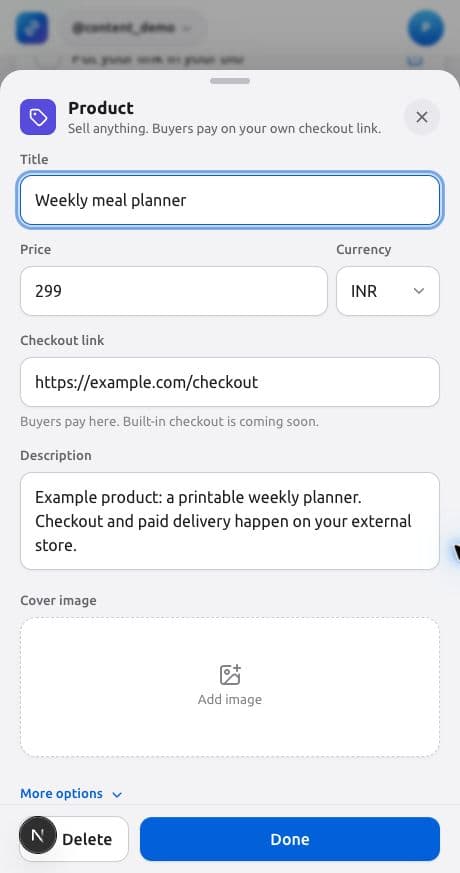
With your external checkout ready, open your Dojvo page’s Editor and add a Product block. The current editor has separate fields for the title, price, currency and checkout link. The screenshot below uses a placeholder URL; replace it with the real checkout before sharing.
- Choose Product from Add another block.
- Write the product title, enter the price and choose INR if you are displaying a rupee price.
- Paste your checkout URL into Checkout link. Add a description and a cover image if you have one.
- Check More options for button text. Use a clear action such as ‘Buy the planner’.
- Check the Link ending if you want to share the product’s own page, then close the editor and confirm the block is live.
What should your Instagram visitor see?
Add your page address using Instagram’s profile link controls: Edit profile → Links → Add external link. Interface labels can change by app version; look for the external website link field. Put a short instruction in the bio, such as ‘Weekly meal planner ↓’, so the link has context.
On the linked page, place the product near the top during launch. Avoid making someone pass five unrelated buttons to find the PDF they just saw in your Reel. Use the same name and cover on Instagram and checkout so they recognise the offer. You can also share the product’s individual Dojvo page when you only want to promote that one item.
How do you test the whole purchase journey?
Start from the profile inside Instagram, not just a desktop browser. Tap through to the product, check the displayed amount and inspect the payment options. Use the checkout provider’s supported testing process. A desktop preview cannot prove how an in-app browser or UPI handoff will behave.
Follow the journey all the way to receiving and opening the file. Test what a buyer sees after a failed payment too. If you deliver manually, state the expected delivery time before purchase and check that you can meet it. Do not call delivery ‘instant’ unless your actual setup does it automatically.
- Read the offer as a new visitor: is the PDF’s content and format clear?
- Check that the payment destination belongs to you and the price matches.
- Verify payment status in the provider’s dashboard rather than relying on a buyer’s screenshot.
- Confirm the file can be downloaded and opened on a phone.
- Make the support and refund information easy to find.
What is worth measuring after launch?
Use Dojvo analytics to see visits and clicks on the product. Use your checkout provider to see completed purchases and refunds. A click is an expression of interest, not a sale. If people tap but do not buy, first check payment errors, unclear delivery information and a mismatch between the post and product page.
If your audience needs a sample, offer a separate free checklist through a Free download block. Our email-list guide explains that workflow. For more product-page context, see selling digital products with Dojvo, and compare the subscription on the pricing page.
Common questions
Can I sell a PDF without my own website?
Yes. A hosted digital-product store or a checkout link with a reliable delivery process can handle the transaction. A bio page is optional when you also need to share videos, freebies and other offers.
Does Dojvo deliver paid PDFs automatically?
No. Dojvo sends buyers to the external checkout URL in your Product block. Set up paid-file delivery with your provider or through a clearly explained process. Dojvo’s Free download block is for free files.
Can buyers use UPI?
That depends on your external checkout provider, seller account and enabled payment methods. Dojvo does not process a Product block purchase or supply native UPI checkout.
Sources and checks
Sources checked on 1 November 2026. Product steps checked against the current Dojvo editor. Provider features and prices can change.
Give your PDF a clear product page beside the rest of your links.
Try Dojvo for 7 days, no card needed. Then ₹299 or US$6 a month. External checkout fees are separate.
Start your free trial →